 Mini-Module
Summary
The Threat Hunting with Sysmon module is designed for cybersecurity professionals, Incident responders, System administrators, and Security enthusiasts. Throughout this module, students will develop advanced proficiency in leveraging Sysmon for threat hunting, enhanced skills in proactive threat detection and mitigation, comprehensive understanding of cybersecurity threat landscapes, and hands-on experience in analyzing Sysmon logs for actionable insights.
Recommended prior knowledge:
-
Basic knowledge of cybersecurity fundamentals
-
Familiarity with Windows operating systems
Deploying Sysmon
System Monitor (Sysmon) is a Windows system service and device driver that, once installed on a system, remains resident across system reboots to monitor and log system activity to the Windows event log. Sysmon is very verbose and performs excellent visibility on an endpoint. It provides visibility in process executions, file system activities, network level events, Windows registry events and other Windows specific processes like named pipes. This makes sysmon a good data source during incidents because if sysmon was configured correctly, we can get the most of the incident events from this source.
Deploying Sysmon is straight forward. We will download the package from Microsoft website, then download a very good config file for sysmon. Sysmon requires a config file so it knows how and what to monitor on the system. We can create our own sysmon config too, but there are very well known configs that are specifically tailored for security incidents and mapped to Mitre techniques as well.
Sysmon can be downloaded from here:
Sysmon : https://docs.microsoft.com/en-us/sysinternals/downloads/sysmon
We will be using olaf hartongs sysmon config:
Sysmon Config : https://github.com/olafhartong/sysmon-modular
Other well known sysmon config includes SwiftOnSecurity config.
Lets deploy sysmon.
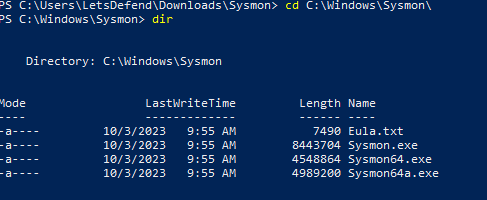
1- First download the sysmon from official website. Then unzip the archive and open powershell as admin and navigate to the sysmon directory. We recommend unzipping the sysmon files under “C:\Windows\”, so the sysmon path becomes “C:\Windows\sysmon”.
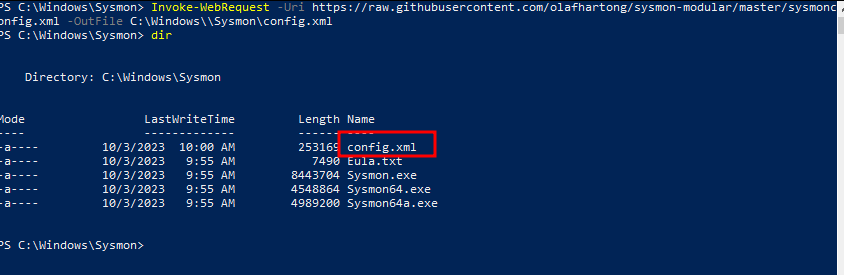
2- Download the sysmon config. Either do it manually by visiting github or we can also use powershell to directly download it. You can use the following command to do it:
PS C:\> Invoke-WebRequest -Uri https://raw.githubusercontent.com/olafhartong/sysmon-modular/master/sysmonconfig.xml -OutFile C:\Windows\\Sysmon\config.xml
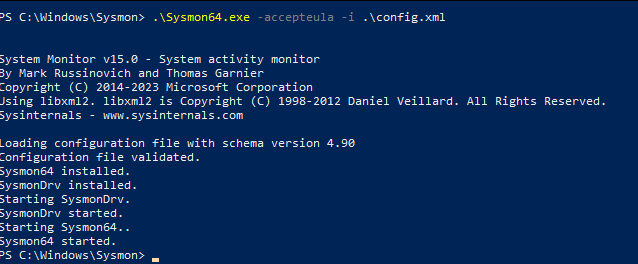
3- Then run the following command to register sysmon as a service:
Sysmon64.exe -accepteula -i config.xml
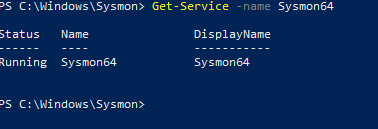
4- Verify that service is running on the system. We can do it using the Get-Service powershell cmdlet:
PS C:\> Get-Service -name Sysmon64
This part of the training explains how to deploy sysmon. The next part of the training covers Hunting Malwares with Process Execution.