 Mini-Module
Summary
The GCP Cloud Logging module is designed for cybersecurity professionals, System administrators, and IT practitioners responsible for cloud security. Throughout this module, students will develop master the utilization of Google Cloud Platform's logging tools for effective cybersecurity monitoring, the ability to implement advanced log management strategies to enhance threat detection and incident response, acquire skills in forensic analysis through the examination of security-related logs within the GCP environment, and strengthen the security posture of cloud environments by applying best practices in log correlation and analysis.
Recommended prior knowledge:
-
Basic knowledge of Google Cloud Platform (GCP) services and infrastructure
-
Familiarity with fundamental cybersecurity principles and practices
Introduction to Google Cloud Operations Suite
In today's cloud-based world, Google Cloud Operations Suite is a game-changer for organizations that want to better manage their cloud infrastructure, applications, and user behavior. This suite offers a unified platform that provides centralized monitoring, troubleshooting, and security across the entire cloud ecosystem.
Google Cloud Operations Suite: A Comprehensive Toolset
Google Cloud Operations Suite is a collection of powerful tools that give organizations deep insights into their cloud environments. It provides a centralized view of critical metrics, logs, and traces, helping teams identify and resolve performance bottlenecks, application errors, and security threats quickly and efficiently.
Core Components of Google Cloud Operations Suite
The suite comprises several key components:
Cloud Logging: Centrally collects and manages logs from various GCP services, applications, and infrastructure components.
Cloud Monitoring: Collects and analyzes metrics data to provide insights into resource utilization, performance, and application behavior.
Cloud Trace: Correlates request traces across multiple services, giving detailed insights into end-to-end application performance and troubleshooting.
Cloud Debugger: Enables developers to step into their code during runtime to identify and resolve application issues.
Cloud Error Reporting: Collects and analyzes error data to track and address application-level issues.
Evolution from Stackdriver to Operations Suite
Google Cloud Operations Suite was originally known as “Stackdriver”. Over time, it evolved significantly to become a more robust and unified platform. This transformation was driven by the increasing complexity of cloud environments and the growing demand for comprehensive observability and management capabilities.
The rebranding to Operations Suite reflects the suite's broader focus on encompassing all aspects of cloud operations, from monitoring and troubleshooting to security and compliance. In addition, the suite has seen the integration of new features and capabilities, such as Cloud Debugger and Cloud Error Reporting, further enhancing its value proposition.
Benefits of Google Cloud Operations Suite
Google Cloud Operations Suite offers numerous benefits to organizations that utilize it:
Centralized Monitoring: Provides a single pane of glass for monitoring metrics, logs, and traces from across the cloud environment.
End-to-End Visibility: Correlates data from different services and components to gain a comprehensive understanding of application behavior and performance.
Proactive Alerts: Generates alerts based on predefined thresholds or anomalies, enabling proactive identification and resolution of issues.
Root Cause Analysis: Enables deep-dive analysis of logs, traces, and metrics to pinpoint the root cause of performance bottlenecks, application errors, and security threats.
Security and Compliance: Integrates with security tools and provides compliance reporting to enforce security best practices and ensure compliance with regulatory requirements.
How to Create a GCP Account
Creating a GCP account is a simple process that can be completed in a few steps. Here's a guide to help you create one:
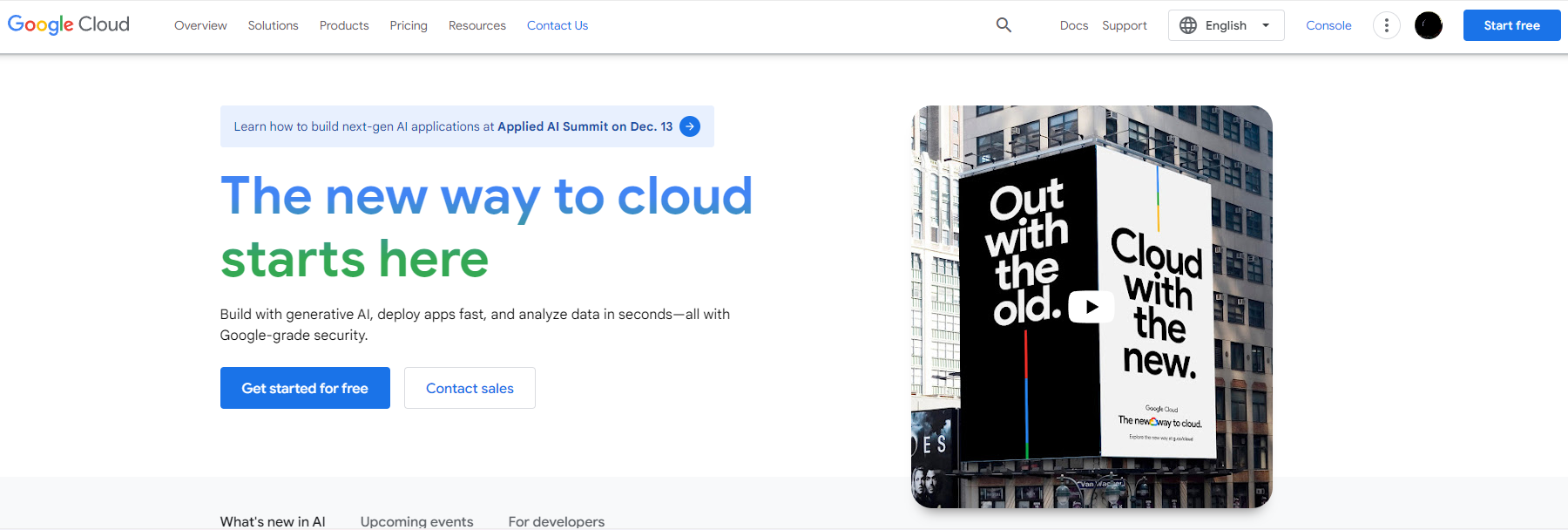
1. Go to the GCP Sign-Up Page
Open the link in the browser: https://cloud.google.com/ . This will take you to the GCP console where you can create an account. Click Get Started for Free.
2. Choose a Subscription Plan
GCP offers different subscription plans to fit your needs and budget. The Free Tier is a good option for beginners because it provides access to a limited number of compute resources and other services for free. If you need more, you can choose a paid plan that better suits your requirements.
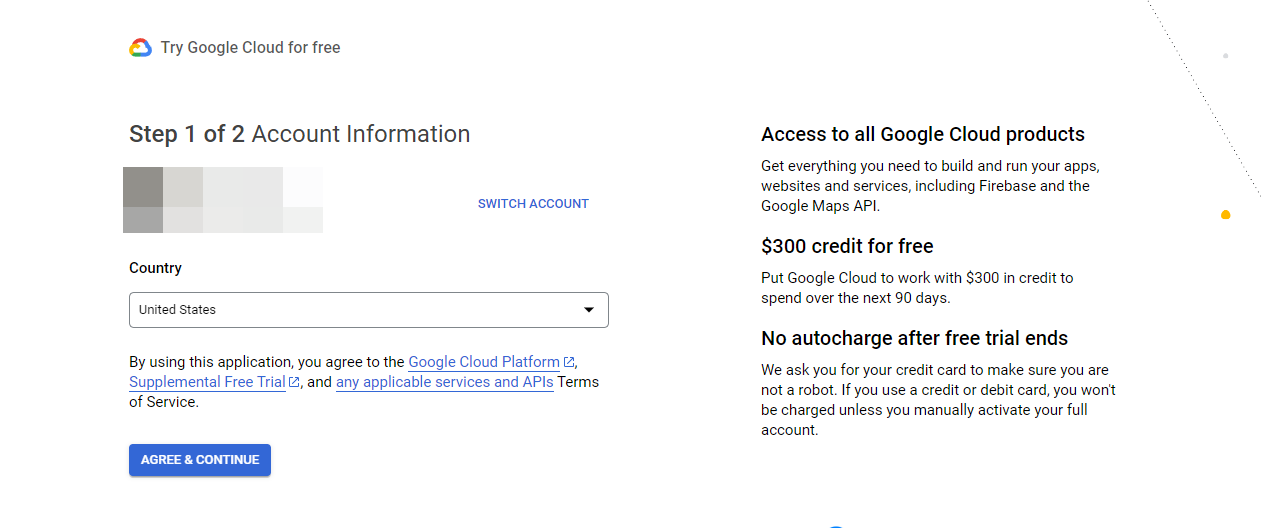
3. Enter Your Account Details
Fill in your email address and create a password for your Google account. Agree to the terms of service and click "Create Account" to continue.
4. Verify Your Identity
An email with a verification link will be sent to your registered email address. Open the email and click the link to confirm your identity.
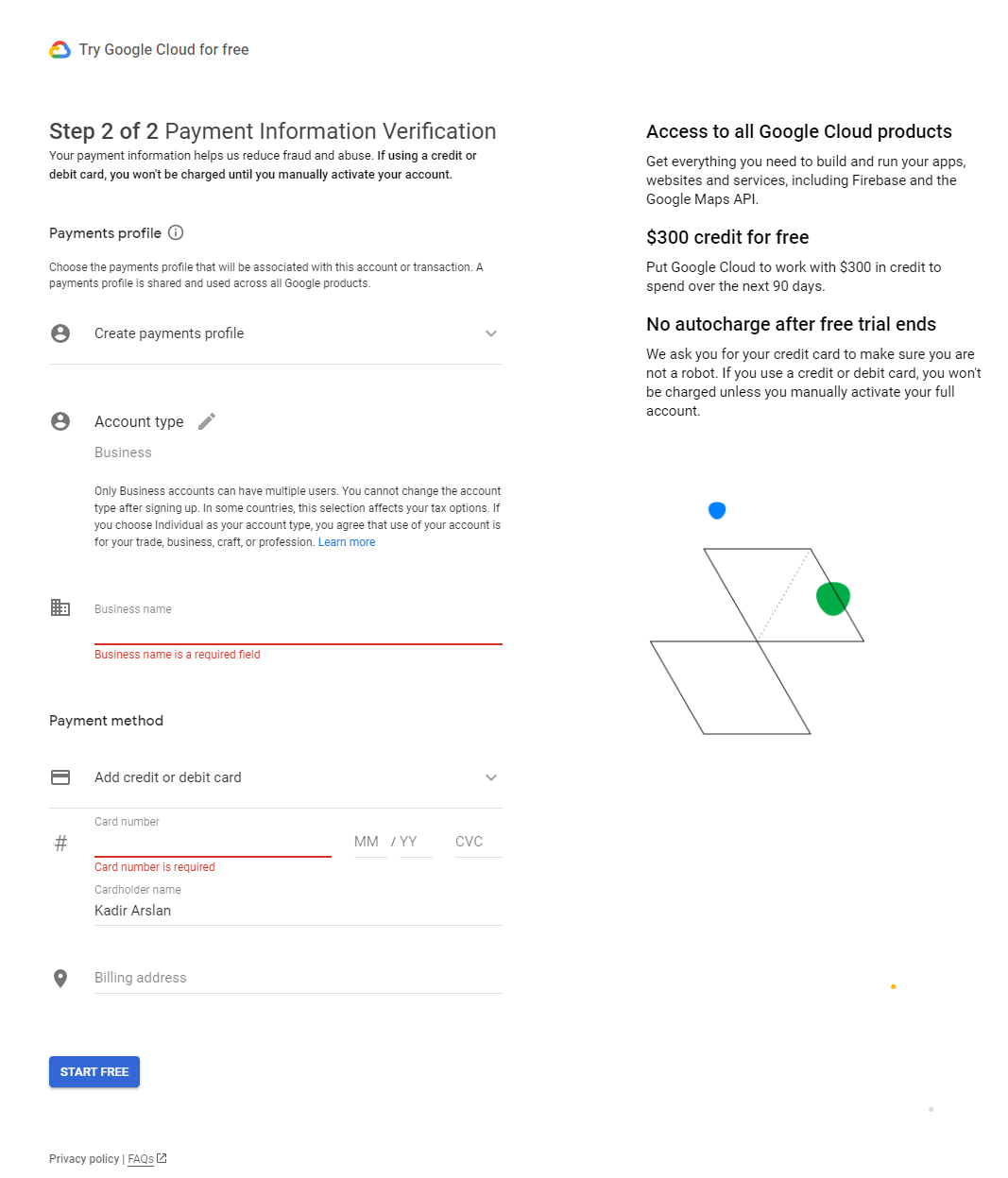
5. Set Up Payment Details
If you choose a paid plan, you will need to provide payment information. You can add a credit or debit card, or link your Google Wallet account.
6. Select a Billing Profile
Choose a billing profile that matches your business structure. Options include Individual, Organization, or Google Cloud Project.
7. Create a Project
A project is like a container for organizing your resources and configurations in GCP. Click "Create Project" to set up your first project.
8. Configure Project Settings
Give your project a name and choose a unique project ID that complies with GCP's naming conventions.
9. Enable Billing
If you choose a paid plan, enable billing for your project. This will allow you to use paid GCP services.
10. Finish Sign-Up
Review the terms and conditions, and click "Accept and Continue" to complete your GCP account creation.
Please don’t forget that these steps can be changed in time. Check the official documentation:
Getting Started with Google Cloud : https://cloud.google.com/docs/get-started
Conclusion
Google Cloud Operations Suite has become an indispensable tool for organizations of all sizes and industries. Its comprehensive set of features, unified platform, and continuous evolution make it a powerful asset for managing, monitoring, troubleshooting, and securing cloud environments.
In the next part of the module, Setting Up Example Instance will be explained.