 Mini-Module

Summary
The Advanced Windows Forensics module is designed for cybersecurity professionals and Digital forensic analysts. Throughout this module, students will develop master advanced forensic techniques on Windows systems, effectively handle and analyze digital evidence, and stay updated with the latest cybercrime investigation methods.
Recommended prior knowledge:
- Basic understanding of Windows operating systems
- Knowledge of network security principles
Windows Event Log Analysis
Examining event logs while performing digital forensic analysis on Windows systems is critical to forensic investigations because it provides a detailed record of events that occur on the system. Event logs contain traces of security breaches, system errors, user activity, and other important events that occur. This data can be used to create a timeline of events, to detect malicious activity, and to identify security vulnerabilities in the system.
Event Log Categories
Windows operating systems use an extensive event log system to provide information to administrators and forensic experts. The logs are categorized into different groups, with each category being a record of specific types of events on the system. We will focus on the main categories encountered in Windows forensics analysis and provide a brief explanation of them below.
Security Events
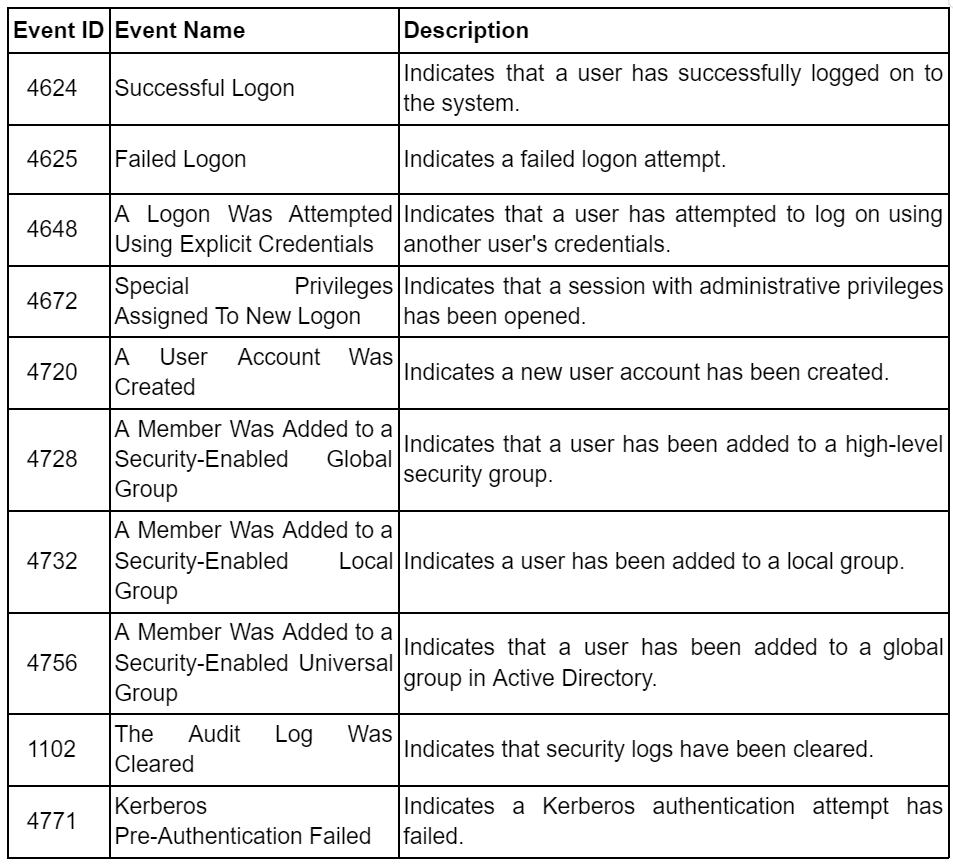
Security logs record events related to system security, including successful and failed logon attempts, user permissions, policy changes, and file permissions.
The most important event IDs and their descriptions are listed below:
System Events
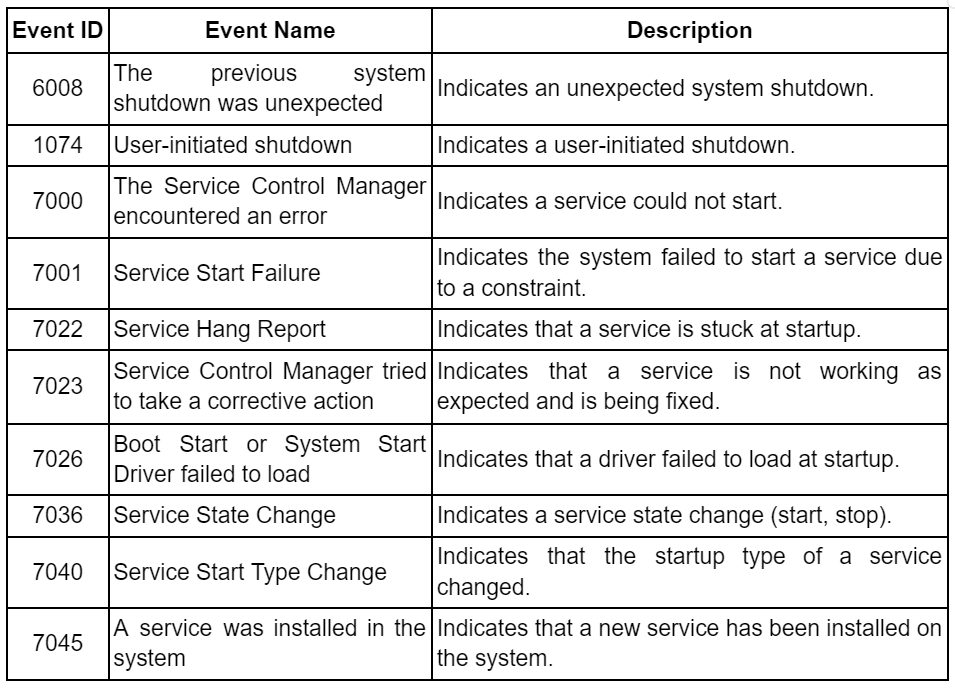
System logs are records of events that are related to the operating system and system components. These logs contain system errors, warnings, and system changes.
The following are important event IDs and their descriptions:
Application Events
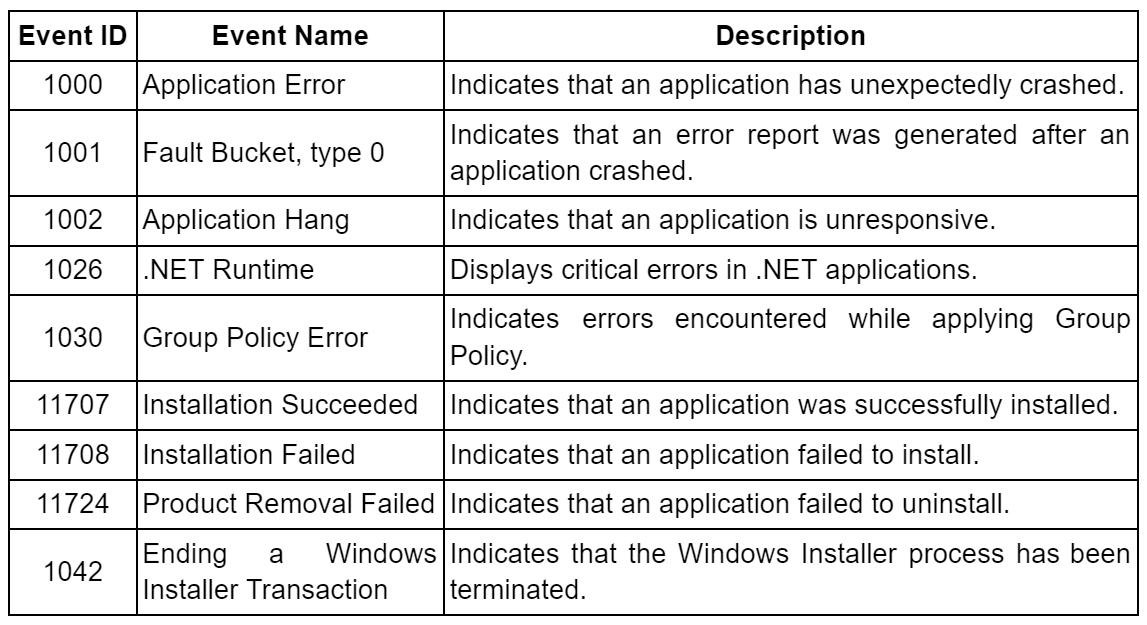
Application logs are records of events related to applications. These events include application errors, warnings, and changes made to applications.
The most important event IDs and their descriptions are listed below:
Powershell Events
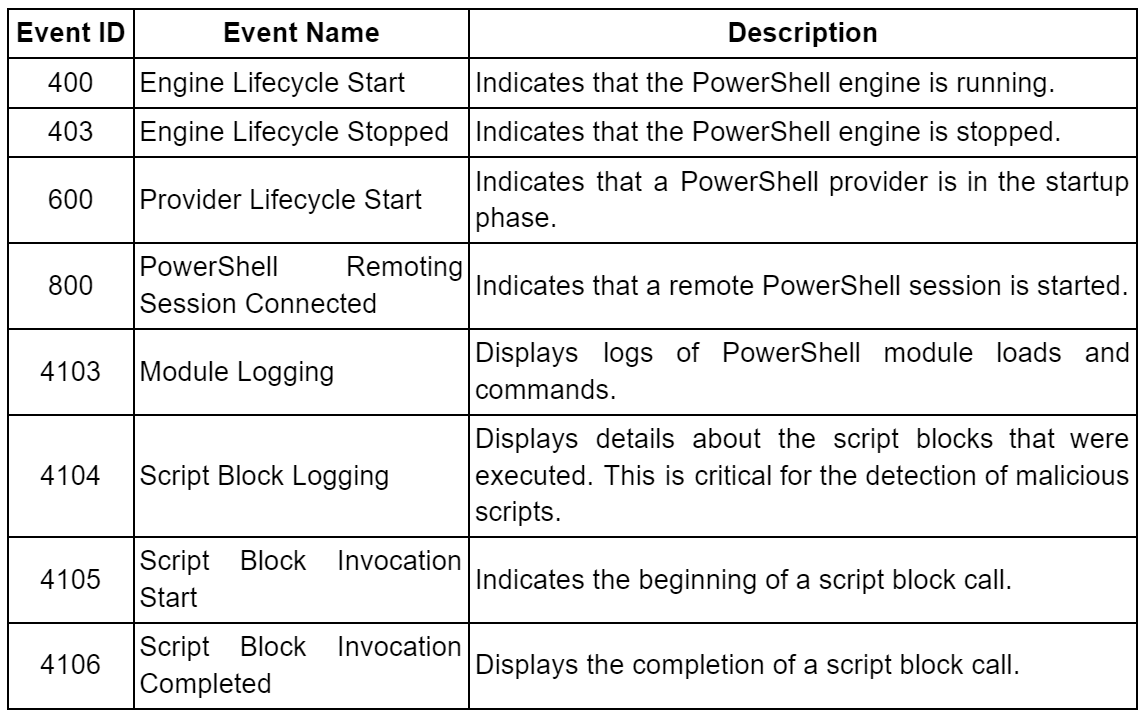
Events related to Powershell are recorded in Powershell logs.
Important event IDs and their meanings are listed below:
Other Essential Log Categories
Microsoft-Windows-Sysmon/Operational: Sysmon (System Monitor) provides a detailed record of system activity, including network connections, file creation, and process startup/shutdown. It is vital for the detection of malicious activity and stealth attack techniques.
Microsoft-Windows-WMI-Activity/Operational: Windows Management Instrumentation (WMI) activity is utilized to manage and modify configurations. Malware and cyber attacks often prefer WMI, so these logs are essential to detect malicious WMI use.
Microsoft-Windows-TerminalServices-LocalSessionManager/Operational: Provides information about remote desktops connected and sessions running. It is used to detect unauthorized access attempts or remote logon events.
Microsoft-Windows-TaskScheduler/Operational: Displays Task Scheduler activity. Malware and attack tools often utilize Task Scheduler to create malicious tasks. These logs can help you detect suspicious tasks and scripts that run automatically.
Microsoft-Windows-SMBServer/Operational: Displays incoming SMB requests and server responses to those requests when the Windows operating system is configured as an SMB server. It is critical for detecting potential security threats, such as attempted unauthorized file access, file sharing security breaches, and anomalous network traffic.
These categories are important for monitoring specific applications and service activity on the system for potential threats, malicious use, and configuration changes. Each provides comprehensive insight for forensic investigations, revealing details behind malicious activities.
Note : Examining records in event logs is an important part of the Windows forensics process. However, in cases where records are deleted, the presence of a security information and event management (SIEM) or log management system makes the process significantly faster and more convenient. These systems collect, store, and analyze event logs in a central location, making it easier for forensic experts to access potentially deleted or altered records. Such an infrastructure allows for quick detection of critical incidents, effective investigation of complex security threats, and detailed analysis of incidents. As a result, the overall efficiency and effectiveness of the forensic analysis process can be significantly improved by using SIEM or log management systems to increase the ability to obtain and securely manage detailed information during Windows forensics analysis.
How to Use Windows Event Viewer
Event Viewer is a powerful tool built into the Windows operating system for viewing various event records, including system, security, and application events. For digital forensics analysis, the data obtained through Event Viewer is critical in detecting malicious activity, system errors, and security breaches.
Main Features and Use
Log Categories : Windows event logs can be divided into three main categories: "Application, Security, and System; there are also categories such as Setup and Forwarded Events. More specific application and service protocols can be found in the Application and Service Protocols section.
Filtering Logs : Event Viewer can filter logs by a specific event type, event ID, source, or time range, providing quick access to the information needed.
Event Details : Each log includes the time stamp of the event, the source, the event ID, the task category, and detailed information about the event, which is important for understanding the origin and impact of the event.
Saving and Exporting Logs : Important logs can be saved for later review or exported in XML, CSV, and TXT formats.
The Importance of Event Viewer in Windows Forensics
Event Viewer streamlines the process of unfolding events and getting results. Although its capabilities are limited, it enables analysts to quickly analyze events if they know what they are looking for. Below you see the Event Viewer interface divided into numbered sections, which we will describe in detail.
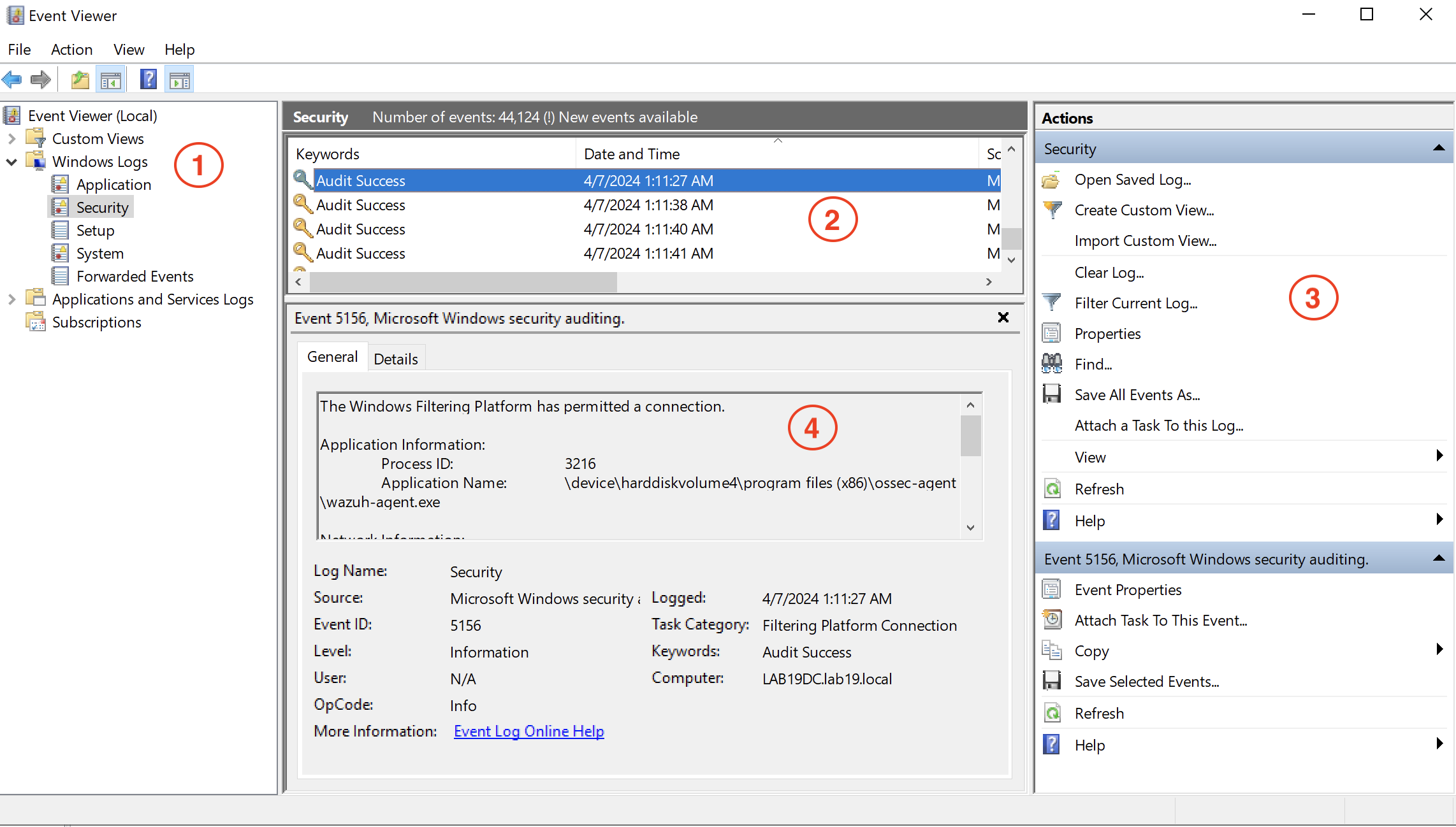
Section 1 : This section displays the main categories that contain event records from various components of Windows. It is divided into subcategories such as 'Application', 'Security', 'Setup', 'System', and 'Forwarded events'.
Section 2 : This section displays the list of specific events under the selected event log category. Security event logs are displayed in this example. Users can select and view the details of a specific event log from this section.
Section 3 : This section allows users to perform various actions such as log filtering, log cleaning, and creating a custom view. Users can use this menu to quickly perform various actions related to event logs.
Section 4 : This section displays details about the selected event. Here you can find out what the event was, when it occurred, and other details.
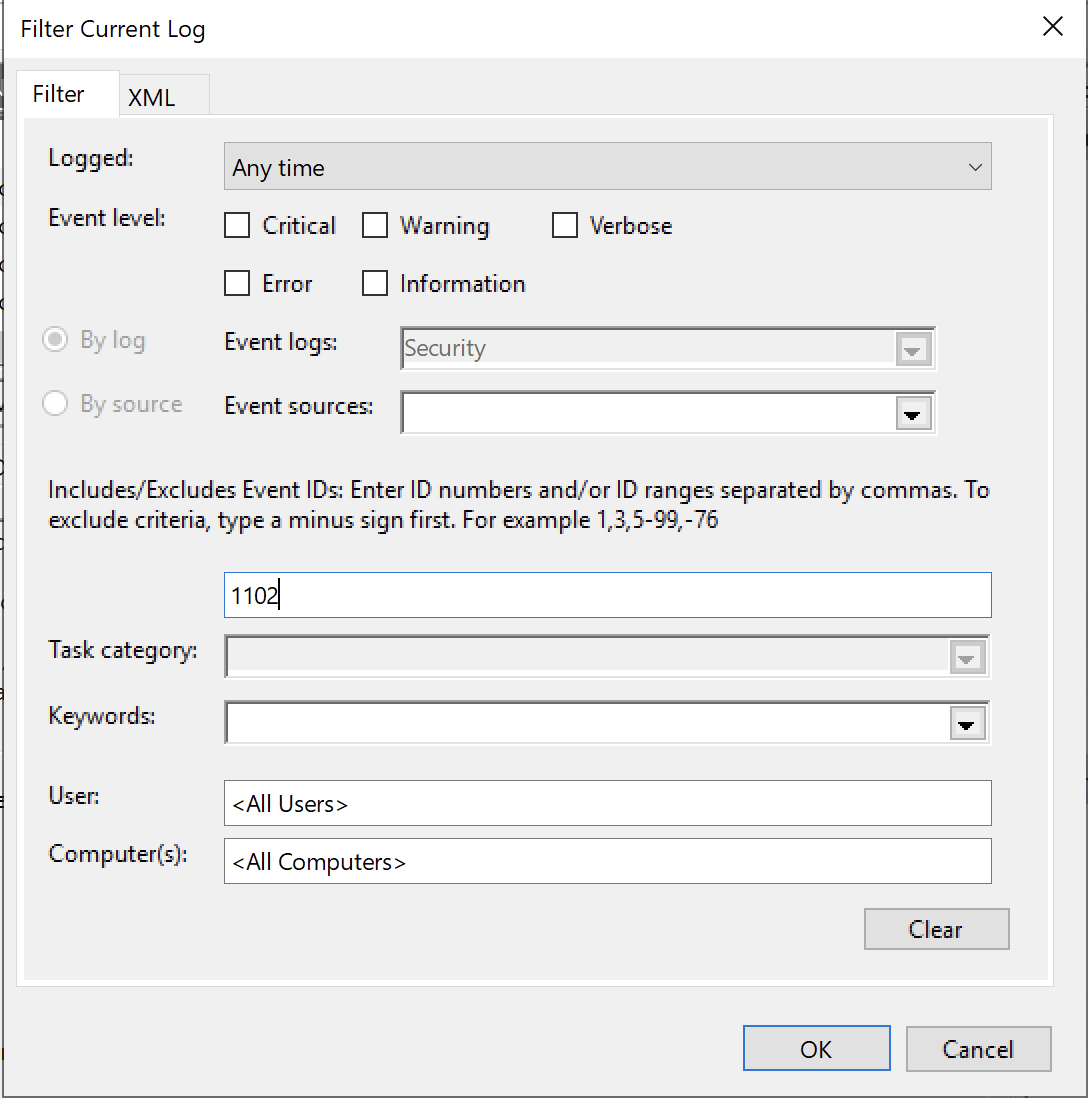
For example : Filter Current Log allows you to search the selected source at a specified time interval, level, Event ID, or keyword.
For the important event IDs above, events can be quickly clarified through this search.
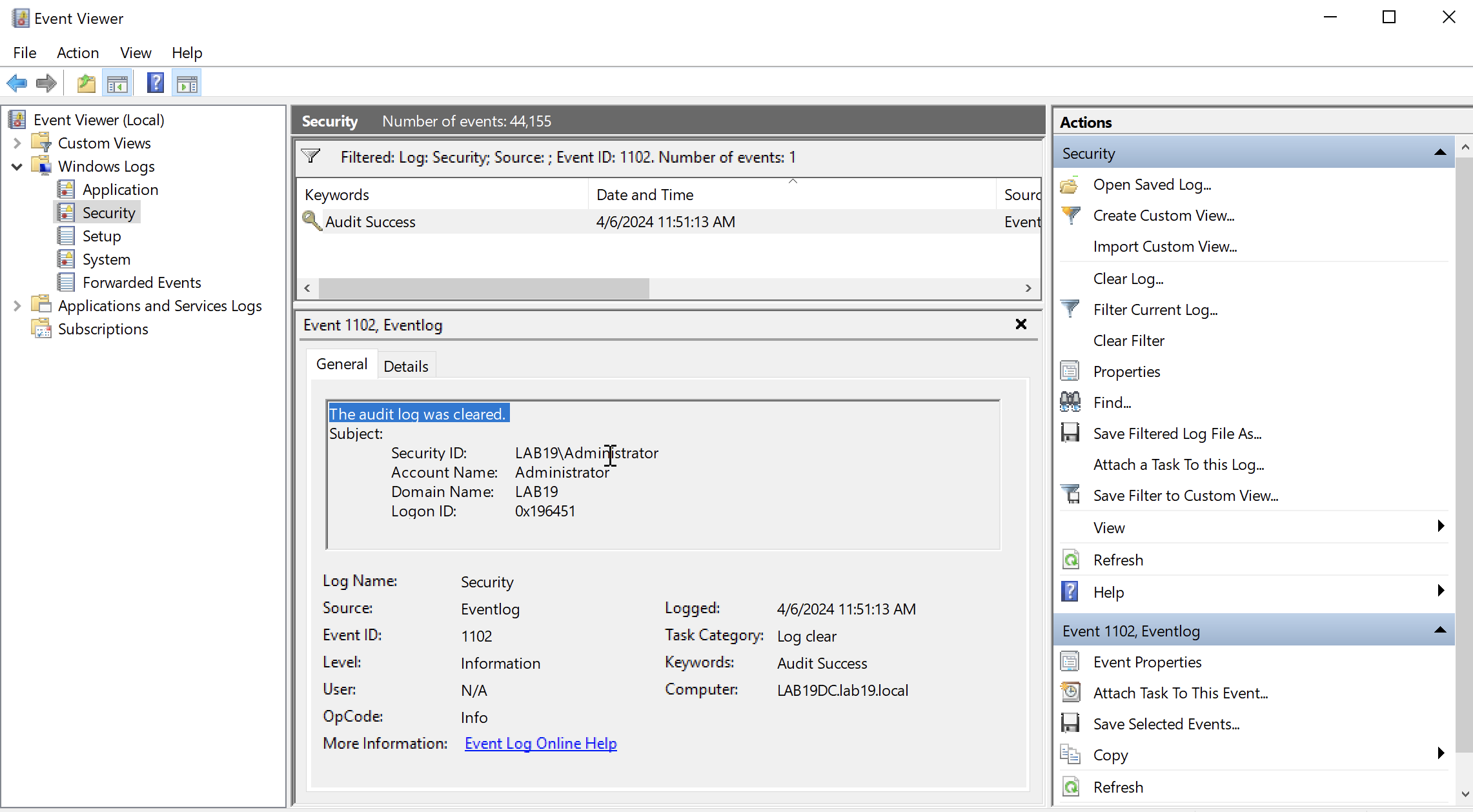
In the example below, to determine if security logs have been deleted from the system, the Event ID 1102 "Event Log Cleared" event was filtered.
The output shows that the logs were deleted on 6/4/2024.
As part of the digital forensics process, system logs can be examined with the help of the Event Viewer. Depending on the event and the log source, the type of search will vary. This section introduced Event Viewer and detailed what goes into what log category and what to look for.
The next section will cover Analyzing the Windows Event Log with Event Log Explorer ," which is the continuation of this section.