Mini-Module
Summary
The Advanced PowerShell for Blue Team module is designed for cybersecurity professionals specializing in defensive strategies within the Blue Team and Detection engineers, incident responders and threat analysts seeking to enhance their PowerShell skills. Throughout this module, students will develop improved automation skills for proactive threat detection and incident response and advanced capacity to customize PowerShell scripts for specialized security scenarios.
Recommended prior knowledge:
- Intermediate knowledge of PowerShell scripting language
- Familiarity with cybersecurity concepts and defensive strategies
- Experience in incident response or cybersecurity operations (recommended but not mandatory)
Creating Security Tools with PowerShell
In previous powershell tutorials, we have seen how to access Eventlogs and Log files and search for their contents. In this section, we will learn how to take these a little further and turn them into automations.
Powershell can be used in almost every aspect of security-related processes and can produce very effective solutions. One of the most important security-related processes is password security. One of the biggest problems, especially when doing scripting-related work, is that passwords are stored in clear text within scripts or on the command line. Let's create a useful solution to this problem with Powershell in our first example:
SecureString
You may want to save the password to a file and read it from that file later. However, if you store the file in plain text, anyone can read it. Therefore, we can use PowerShell's ConvertFrom-SecureString and ConvertTo-SecureString cmdlets to save a SecureString to a file.
The following PowerShell code creates a SecureString, encrypts it, and saves it to a file:
$securePassword = Read-Host -Prompt "Enter your password" -AsSecureString
$securePassword | ConvertFrom-SecureString | Set-Content mysecurestring.txt
When we run this script and are asked for a password, p@ssw0rd!! Let's enter its value and look at the content of the “mysecurestring.txt” file:
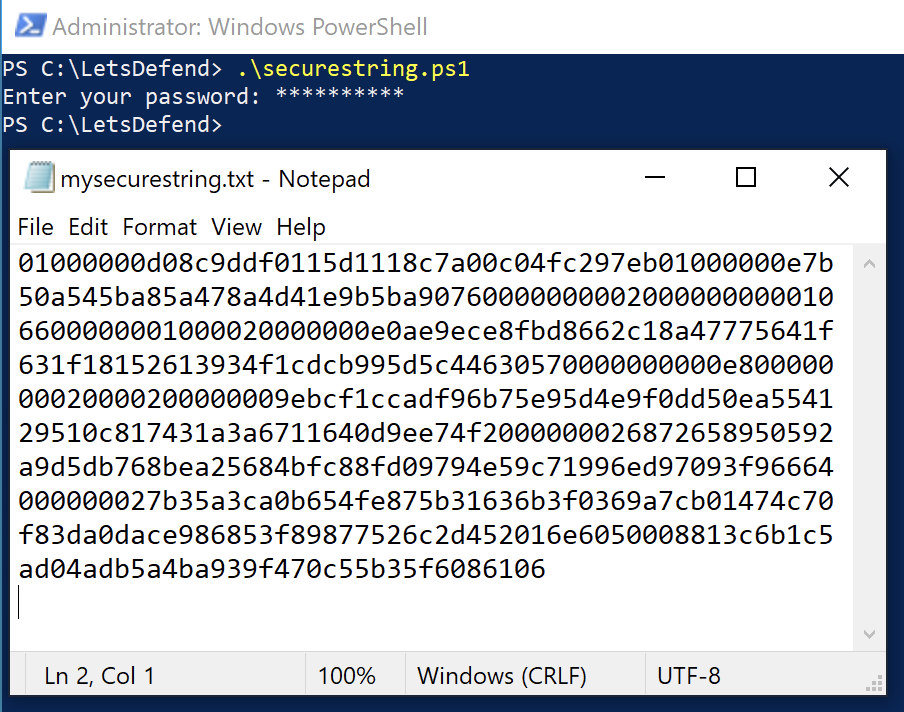
Now, without having to use a cleartext password in any file, within our script, or on the command line, we can use our password by referring to our encrypted file when necessary:
# Read SecureString from Saved file
$securePassword = Get-Content mysecurestring.txt | ConvertTo-SecureString

# Convert SecureString to PSCredential
$credential = New-Object System.Management.Automation.PSCredential ("username", $securePassword)

# Use Credential for web request
$webRequest = Invoke-WebRequest -Uri $url -Credential $credential
In this example, we read the file using the Get-Content cmdlet and recycle the encrypted string with ConvertTo-SecureString . We then convert this SecureString into a PSCredential object and send this object as authentication information to a web service.
Now that we know how to keep our passwords safe, we can start working on how to automate security-related tasks.
Track important EventIDs
Windows eventlogs are the area where almost all the records about almost everything that happens in the operating system are kept. Therefore, monitoring here means being aware of what is happening in our operating system.
From a security perspective, there are some activities on EventLogs that need to be constantly and carefully monitored. Five of the most important of these eventids can be listed as follows:
Event ID 4625
This eventid is triggered when there is a failed account login attempt. This could be a sign that an attacker is trying to take over the account.
Event ID 4648
This eventid indicates that a user has performed explicit authentication (specifically for a service or task) for another account. This may be normal, but it can also be a sign that an attacker has taken over an account and is trying to use it to gain more access.
Event ID 4703
This eventid indicates that a task's security settings have been changed. This could be a sign that an attacker is trying to exploit something.
Event ID 1102
This eventid indicates that a log has been deleted. This could be a sign that an attacker is trying to cover his tracks.
Event ID 7045
This eventid indicates that a new service has been installed. This could be a sign that an attacker is trying to add a malicious service to the system.
Now, let's write a script that scans the EventLogs for these events every hour and notifies us by e-mail if any of them are triggered:
# SMTP Server Settings
$smtpServer = "smtp.letsdefend.io"
$smtpUser = "labuser"
$smtpPassword = "**********"

# Sender and Recipient Mail Addresses
$from = "[email protected]"
$to = "[email protected]"

# Determine Start Time
$lastHour = (Get-Date).AddHours(-1)

#EventIDList
$eventIDs = @(4625, 4648, 4703, 1102, 7045)

#ControlEvents
foreach ($id in $eventIDs) {
	$events = Get-WinEvent -FilterHashtable @{Logname='Security'; ID=$id; StartTime=$lastHour}
	if ($events) {
		$subject = "Alert: Detected Event ID $id"
		$body = "Detected event ID $id on the following system: $($events[0].MachineName) at $($events[0].TimeCreated)"

		# Create Credential Object for SMTP
		$smtpCred = New-Object System.Management.Automation.PSCredential -ArgumentList $smtpUser, $($smtpPassword | ConvertTo-SecureString -AsPlainText -Force)

		# Send Email Notification
		Send-MailMessage -SmtpServer $smtpServer -From $from -To $to -Subject $subject -Body $body -Credential $smtpCred -UseSsl
	}
}
This script assumes that the SMTP server supports SSL and requires username and password for authentication. These values should be set according to the requirements of your own SMTP server.
We just need to save this script with the name “securityTest.ps1” and add it as a Scheduled Task to run every hour and with an account that has access to eventlogs.
Once it starts running, it will examine the events that occurred 60 minutes before the running time and send us an e-mail if one of the events we specified in the $eventIDs string has occurred.
As you will notice, we have created a tool that is likely to have a high False Positive rate in its notifications. For example, 4625 (Logon Failed) events will be triggered even if the user accidentally enters the wrong password even once. So, how can we do this if we set a threshold value for each event id and ask it to send us an e-mail if a number of events occur above this value? Let's take a look together:
# SMTP Server Settings
$smtpServer = "smtp.letsdefend.io"
$smtpUser = "labuser"
$smtpPassword = "**********"

# Sender and Recipient Mail Addresses
$from = "[email protected]"
$to = "[email protected]"

# Determine Start Time
$lastHour = (Get-Date).AddHours(-1)

# EventID and Threshold List
$eventLimits = @{4625=10; 4648=5; 4703=3; 1102=1; 7045=2}

#ControlEvents
foreach ($entry in $eventLimits.GetEnumerator()) {
	$id = $entry.Key
	$limit = $entry.Value
	$events = Get-WinEvent -FilterHashtable @{Logname='Security'; ID=$id; StartTime=$lastHour}
	if ($events.Count -gt $limit) {
		$subject = "Alert: Detected Event ID $id"
		$body = "Detected $($events.Count) instances of event ID $id on the following system: $($events[0].MachineName) at $($events[0].TimeCreated)"

		# Generate SMTP credentials
		$smtpCred = New-Object System.Management.Automation.PSCredential -ArgumentList $smtpUser, $($smtpPassword | ConvertTo-SecureString -AsPlainText -Force)

		# Send email notification
		Send-MailMessage -SmtpServer $smtpServer -From $from -To $to -Subject $subject -Body $body -Credential $smtpCred -UseSsl
	}
}
There is a threshold value named $eventLimits that we set for each event id inside the Array named $eventLimits
We add each $eventLimits element to the $entry variable as a key & value pair and start the loop.
In this case, our initial values will be as follows:
$id = $entry.Key (4625)
$limit = $entry.Value (10)
In the line of:
$events = Get-WinEvent -FilterHashtable @{Logname='Security'; ID=$id; StartTime=$lastHour} which is next line, we call the Get-WinEvent cmdlet with the -FilterHashtable parameter and define three filters: LogName, ID, StartTime.
In this case, we are capturing the events that occurred in the security channel within the last hour with the EventID of 4625.
In the if ($events.Count -gt $limit) { line, we check whether the number of events is more than the limit we have set (-gt) and if this comparison is True which means the number of the events are more than the limit we have defined, we then proceed to the Email sending stage.
In this part of the training, we have covered how to store passwords securely with Powershell using securestring and how to monitor eventlogs automatically with Powershell. The next part of the training will be about Using Threat Intelligence (TI) Resources with Powershell .